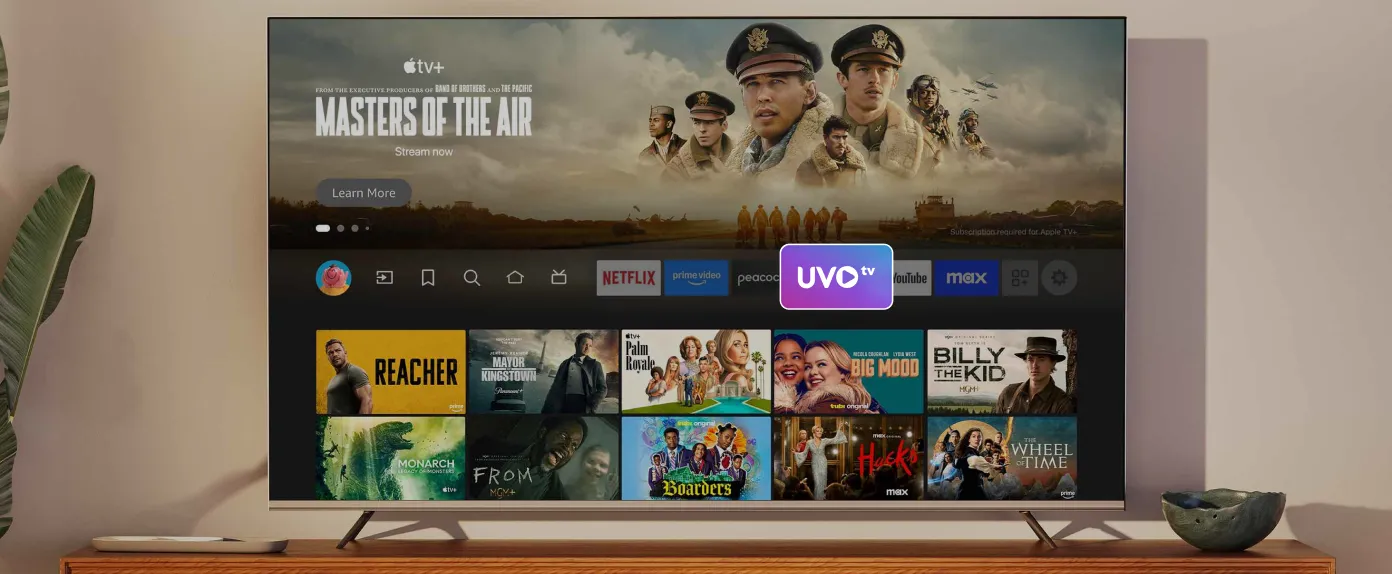
How to Watch Live TV on Amazon Fire TV (Firestick): Free International Channels
A Firestick plugged into the back of a TV can do a lot more than play movies. With the right live TV apps for Firestick, the same small device can pull in news, sports, and entertainment channels from dozens of countries, with no monthly bill. Getting there takes about ten minutes: choose a few free apps, install them from the Amazon Appstore, and arrange the home screen so live channels sit one click away.
Fire TV Stick vs Fire TV: What You Need to Know
Amazon Fire TV is Amazon’s family of streaming devices and the software that runs on them. “Firestick” is the everyday name for the Fire TV Stick, the dongle that plugs into a TV’s HDMI port. “Fire TV” is the wider family, which also covers the Fire TV Cube and smart TVs with Fire TV built in.The basic setup and app-search process is similar across Fire TV devices, although app availability and some interface options can vary by model, operating system, and region.
Fire TV Sticks vs Fire TV Cube
Amazon offers several Fire TV Stick models alongside the Fire TV Cube. The main differences are video resolution, performance, storage, Wi-Fi support, and operating system. Some newer models use Amazon’s Vega OS, while other Fire TV devices continue to use Fire OS.
For watching live TV, the most important question is whether the streaming app you want is available for your specific Fire TV device. App compatibility can vary by model, operating system, and region, so check the Amazon Appstore listing before installing.
The Difference Between Firestick and Roku
Both plug into a TV and run free streaming apps, and many free services publish on both. Fire TV apps come from the Amazon Appstore and lean on Alexa voice search, while Roku apps come from the Roku Channel Store and sit in a simpler grid of tiles. If your TV runs Roku, this guide to watching free movies on Roku covers the same ground for that device.
Free Live TV Apps Available on Fire TV
Free live TV on Fire TV runs on ad-supported apps, often called AVOD or FAST services. Channels carry commercial breaks in place of a subscription fee, the same trade-off broadcast television has always made. These apps fall into three broad groups:
- Large free channel services with hundreds of mostly US-focused channels, from news to classic shows and themed movie channels
- Broadcaster and news apps from individual networks, often with a live stream of their main channel
- International and diaspora apps built around channels from specific countries and regions
Many of these apps also feed Fire TV’s built-in Live tab and channel guide, which lays out channels from installed apps in a cable-style grid (AFTVnews). Install a compatible app and its channels appear in the guide on their own. For households dropping cable entirely, this guide for cord-cutters covers what else to set up.
Finding International and Diaspora Channels
The big US-focused services carry only a thin slice of international programming. Viewers who want the evening news from Lagos or Lahore, or a Spanish-language channel from back home, will usually get further with an app built around international films and television.
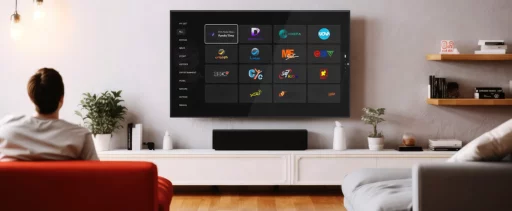
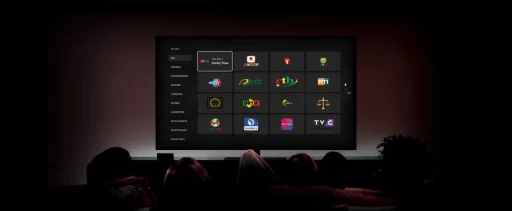
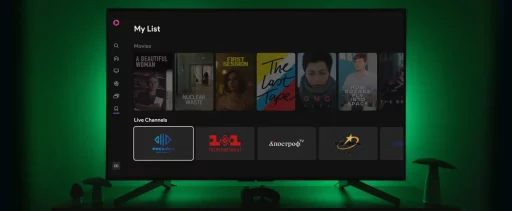
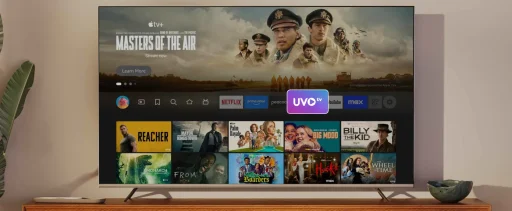
UVOtv is one option in this group. It’s a free app on the Amazon Appstore with 700+ live TV channels from regions including Africa, India, Pakistan, Nepal, the Arab world, Latin America, and Ukraine, plus on-demand films, and it doesn’t ask for a subscription or a credit card. For language-specific setups, see the guides to Arabic channels in the USA and watching TV in Spanish for free.
How to Find and Install Free International TV Apps
The easiest and safest way to install streaming apps on Fire TV is through the Amazon Appstore. An Amazon Prime membership isn’t required: a free Amazon account is enough to register the device and download free apps.
There are two quick ways to find an app:
- Voice: hold the microphone button on the Alexa Voice Remote and say the app’s name
- Search: select the magnifying glass on the home screen and type the name with the on-screen keyboard
Step-by-Step: Setting Up UVOtv on Your Firestick
1. Plug the Firestick into an HDMI port on the TV and connect its power cable. Some newer models can draw power from the TV’s USB port.
2. Switch the TV to that HDMI input and follow the on-screen setup: choose a language, connect to Wi-Fi, and sign in to or create an Amazon account.
3. Press the Home button, then open search or hold the voice button.
4. Search for “UVOtv” and select it from the results.
5. Select Get or Download and wait for the installation to finish.
6. Open the app, select your preferred region or browse the available channels, and start watching.
Tips for Getting the Best Streaming Experience
- Check the Wi-Fi signal where the TV sits. If live channels buffer, moving the router closer or adding an Ethernet adapter usually fixes it.
- Restart the Firestick every so often from Settings, then My Fire TV, then Restart. It clears memory and speeds up sluggish menus.
- Remove apps you no longer use, especially on models with 8GB of storage.
- Favorite the channels you watch most in the channel guide so they appear at the top.
- Keep automatic app updates switched on, since free apps add and reorganize channels regularly.
FAQ
Can I watch live TV for free on a Firestick?
Yes. Amazon Fire TV supports many free, ad-supported apps that stream live TV without a subscription, including apps with international channels.
Is UVOtv available on Amazon Fire TV?
Yes. UVOtv is a free to download from the Amazon Appstore, with international live TV channels and films and no subscription required.
What is the difference between a Firestick and Fire TV?
“Firestick” usually means the Fire TV Stick, the dongle that plugs into a TV’s HDMI port. Fire TV is the wider family of devices, including the Fire TV Cube and smart TVs with Fire TV built in.
Do you need Amazon Prime to use a Firestick?
No. A free Amazon account is enough to set up a Firestick and download free apps. Prime only unlocks Amazon’s own subscription content.