

How to Watch Live TV on LG Smart TV for Free
An LG Smart TV can stream live news, sports, and entertainment without a cable box or a monthly bill. Many owners may not realize how many free viewing options are available, since they are spread across built-in services, downloadable apps, and over-the-air broadcasts. If you are wondering how to watch live TV on LG Smart TV without paying for it, the answer depends on whether you want local broadcasts, American streaming channels, or television from another country. Each option has a different setup process, but getting started is usually straightforward.
What Free TV Options Are Available on LG Smart TVs?
Built-In Free Channels vs App-Based Streaming
Free live TV on an LG reaches you in two broad ways.
The first is built in. LG Channels comes preinstalled on webOS TVs, and according to LG it carries 400+ free live channels in the US, supported by ads, along with on-demand movies and shows. You open it from the app bar and start watching. LG TVs sold in North America also include a digital tuner, so an antenna plugged into the coaxial port picks up local broadcast stations at no cost. The FCC’s reception maps show which stations reach your address.
The second is app-based streaming. Free, ad-supported apps installed from the LG app store add their own channel lineups on top of what the TV already has. This is where most international and diaspora programming lives, since built-in services and antennas lean heavily toward American content.
How to Find Free Live TV Apps on LG Content Store
LG’s app store has different names and interfaces depending on the webOS version. Older models (webOS 4.5 and earlier) call it LG Content Store. Newer models simply call it Apps, and you reach it from the Home menu, as described in LG’s support guide.
To look for free live TV apps:
- Press the Home button on your remote and open Apps or LG Content Store.
- Use the search icon in the upper right corner to search for an app by name.
- Browse available categories if you don’t have a specific app in mind.
- Check the app’s detail page for installation information, compatibility, and any applicable charges.
Some installs ask you to sign in to an LG account first. Creating one is free and only needed once per TV.
Step-by-Step: Setting Up Free International TV on Your LG TV
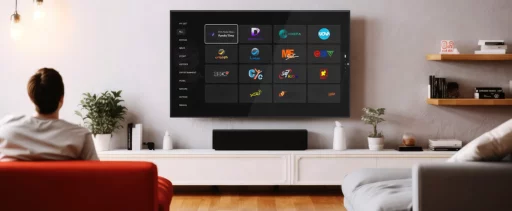
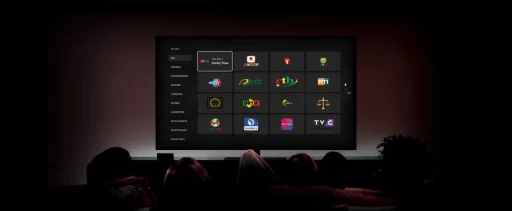
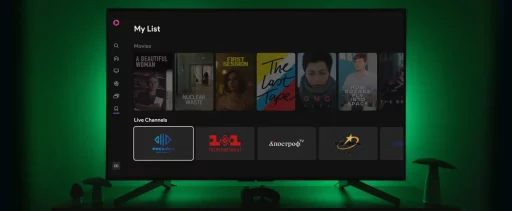
UVOtv is a free international streaming app available on supported LG Smart TVs. It carries 700+ live TV channels from regions including Africa, India, Pakistan, Nepal, the Arab world, Latin America, and Ukraine, plus independent and international films on demand, with no paid subscription. Availability of individual channels and titles may vary by region. Here is how to set it up:
1. Press the Home button on your LG remote.
2. Open Apps (or LG Content Store on models with the older interface).
3. Select the search icon and type UVOtv.
4. If UVOtv appears in the results, select it and choose Install.
5. Sign in to your LG account if the TV asks.
6. Open UVOtv from the app bar once installation is complete.
7. Browse the available regions and choose a channel to start watching.
To find it faster next time, you can move the app to a more convenient position in your app list. On supported models, press and hold the Wheel (OK) button on the app tile to enter Edit App List mode, then reposition the app. The exact controls vary by webOS version.
If UVOtv does not appear in the search results, check your TV’s model, webOS version, and LG Services Country setting. Some apps are not available on every device or in every region. You can also check compatibility through the LG Content Store.
If you watch on other screens too, the setup is similar elsewhere. We have separate guides on how to watch live TV on Amazon Fire TV and how to watch free movies on Roku.
Best Free International Channels on LG Smart TV
The best channels for you depend on where home is. Built-in LG Channels includes some global news and sports channels, and the exact lineup changes by country, so the guide in Canada differs from the one in the US. For programming in another language, a dedicated international app goes much further.
Finding Diaspora and International Content
Region-based browsing is the quickest way in. Instead of scrolling through a single long guide, an app like UVOtv groups live channels by region, so a viewer with family in Nigeria or Pakistan can go straight to news, entertainment, and music from that part of the world. The same app holds films from independent and international filmmakers, which helps when nothing live fits the evening.
A few habits make the experience smoother on an LG TV:
- Use a wired Ethernet connection if the router is close. A stable connection can help reduce buffering and interruptions during live streaming.
- Plan on around 5 Mbps for HD streaming, and more if several people in the house stream at once.
- Close and reopen an app that freezes. If the problem continues, restart the TV and check for software or app updates.
If the television you miss most comes from another country, watch free on UVOtv and add it to your LG TV in a few minutes.
FAQ
Can I get live TV on my LG smart TV?
Yes. LG Smart TVs running webOS include LG Channels, a free built-in service with live channels, and they support free ad-supported apps from the LG app store. With an antenna connected, the built-in tuner also picks up local broadcast stations.
Is UVOtv available on LG Smart TV?
Yes. UVOtv is available on LG Smart TVs through the LG app store (Apps, or LG Content Store on older models). It offers free international live TV channels and films without a subscription. Availability may vary by region, model, and webOS version.
Do I need an internet connection to watch TV on an LG Smart TV?
For streaming, yes. LG Channels and apps such as UVOtv need a Wi-Fi or wired internet connection. Local broadcast channels received through an antenna work without internet.